I have to give a shout out to Inkscape what a fantastic tool for drawing and editing vector based icons (such as SVG files). Thoroughly recommend it. Its free and open source!
If it isn't suitable or you're looking for a cost effective way of producing professional icons or UI design check out https://www.fiverr.com/. Its a market place to find, connect with, and hire services of just about any kind.
While you're waiting for your designer to draw your new icons, you can hire someone to pop balloons for you, or take a bath in baked beans.

Showing posts with label WPF. Show all posts
Showing posts with label WPF. Show all posts
Sunday, July 17, 2016

Thursday, November 14, 2013
Get ListboxItem from a the bound SelectedItem
In my case the ListBox is bound to an IEnumerable<Transaction>. Where Transaction is a custom type in my domain model.
        <ListBox x:Name="TransactionListBox"
                     ItemsSource="{Binding Statement.Transactions}"
                     SelectedItem="{Binding SelectedTransaction}" />
...
        private ListBoxItem GetSelectedListBoxItem()
        {
            object transaction = this.TransactionListBox.SelectedItem;
            return (ListBoxItem) this.TransactionListBox.ItemContainerGenerator.ContainerFromItem(transaction);
        }
Get DataGridCell given row and column index
        private static DataGridCell GetCell(DataGrid grid, DataGridRow row, int column)
        {
            if (row != null)
            {
                var presenter = GetVisualChild<DataGridCellsPresenter>(row);

                if (presenter == null)
                {
                    grid.ScrollIntoView(row, grid.Columns[column]);
                    presenter = GetVisualChild<DataGridCellsPresenter>(row);
                }

                var cell = (DataGridCell)presenter.ItemContainerGenerator.ContainerFromIndex(column);
                return cell;
            }
            return null;
        }
Find a Child Element in the Visual Tree Programmatically
        private static T GetVisualChild<T>(Visual parent) where T : Visual
        {
            T child = default(T);
            int numVisuals = VisualTreeHelper.GetChildrenCount(parent);

            for (int i = 0; i < numVisuals; i++)
            {
                var v = (Visual) VisualTreeHelper.GetChild(parent, i);
                child = v as T;
                if (child == null)
                {
                    child = GetVisualChild<T>(v);
                }
                if (child != null)
                {
                    break;
                }
            }
            return child;
        }
Finding a DataGridRow based on row index in WPF
        private static DataGridRow GetRow(DataGrid grid, int index)
        {
            var row = (DataGridRow)grid.ItemContainerGenerator.ContainerFromIndex(index);
            if (row == null)
            {
                // May be virtualized, bring into view and try again.
                grid.UpdateLayout();
                if (index >= grid.Items.Count)
                {
                    index = grid.Items.Count - 1;
                }

                grid.ScrollIntoView(grid.Items[index]);
                row = (DataGridRow)grid.ItemContainerGenerator.ContainerFromIndex(index);
            }
            return row;
        }
Friday, September 6, 2013
Practical uses for Secure String
Secure Strings (or sstrings for short) seem to be a seldom used class in .NET. There is quite a lot of misunderstanding of what it is used for. The basic idea is to not store passwords in memory in clear text. Its not going to help you transmit passwords over the wire or in a serialised format. The main vulnerability it protects against is someone being able to read memory, or memory dumps. Realistically this is a tiny fringe case, but may have more benefit on a device susceptible to being lost or stolen as opposed to servers.
To use it properly the string must be added to the SecureString object one character at a time. If you grab the password from the user / UI and put it into a string first, you have defeated the purpose and might as well not bother with secure strings. As soon as the string is in memory as a string the GC could make any number of copies of it and it could stick around for some time before the memory is actually overridden.
The secure string object is tagged so the GC does not make copies of it or move it.
See:
http://stackoverflow.com/questions/4502676/c-sharp-compare-two-securestrings-for-equality?lq=1
Also consider:
To use it properly the string must be added to the SecureString object one character at a time. If you grab the password from the user / UI and put it into a string first, you have defeated the purpose and might as well not bother with secure strings. As soon as the string is in memory as a string the GC could make any number of copies of it and it could stick around for some time before the memory is actually overridden.
The secure string object is tagged so the GC does not make copies of it or move it.
See:
http://stackoverflow.com/questions/4502676/c-sharp-compare-two-securestrings-for-equality?lq=1
Also consider:
- Secure Long aka slong
- Secure Int64 aka BigSlong
Friday, August 24, 2012
New Version of Type Visualiser
Version 1.0.18 has been released of my Type Visualiser Tool. This release contains some cool new features but the biggest change was by far shifting to a more strict MVVM approach.
When writing the first release the agile-ist in me wanted to get a prototype up and running as quickly as possible. This resulted in a great deal of code behind to dynamically draw the visualisation. The driver behind the change was the increasing number of bugs, inconsistency of behaviour and ultimately difficultly of adding new features.
By changing to a strict MVVM approach and heavily leveraging data-binding most of the code behind shifted into controllers and the model. Once complete the justification was evident by the ease of adding new some new features.
Here's a summary of the new features:
When writing the first release the agile-ist in me wanted to get a prototype up and running as quickly as possible. This resulted in a great deal of code behind to dynamically draw the visualisation. The driver behind the change was the increasing number of bugs, inconsistency of behaviour and ultimately difficultly of adding new features.
By changing to a strict MVVM approach and heavily leveraging data-binding most of the code behind shifted into controllers and the model. Once complete the justification was evident by the ease of adding new some new features.
Here's a summary of the new features:
|

|
|
 |
|
 |
|
 |
Saturday, April 23, 2011
How to show a dialog in MVVM
In Mvvm you do not want direct references from your controllers (aka View-Models, I find it easier to call them controllers for simplicity). This means you don't want code that specifically calls Window.Show or MessageBox.Show. The reason is basically two-fold:
Message Box Usage
Message boxes pose a problem for unit testing because when open they block the thread from completing, meaning user intervention is required to continue a test. This is not acceptable. To circumvent this, MessageBox use can be accessed via an interface.
The above code works in production, but during testing a mock will need to be injected into the MessageBox property.
- First you will be unable to unit test the controller. Message-boxes or Dialogs popping open will halt the test.
- If you decide to share some code with another project that uses a different UI technology, then not following Mvvm explicitly will prevent this. Also common is stakeholders changing their minds.
The solution is to make use of an Inversion of Control container (aka factory).
Message Box Usage
Message boxes pose a problem for unit testing because when open they block the thread from completing, meaning user intervention is required to continue a test. This is not acceptable. To circumvent this, MessageBox use can be accessed via an interface.
private IMessageBoxService backingMessageBoxService;
public IMessageBoxService MessageBox {
get {
return this.backingMessageBoxService ?? (this.backingMessageBoxService = new WpfMessageBoxService());
}
private set {
// Provided for testing
this.backingMessageBoxService = value;
}
}
}
The above code works in production, but during testing a mock will need to be injected into the MessageBox property.
[Test(Description = "The save action should trigger a message box")]
[Timeout(500)]public void SuccessfulSaveMessage() {
var controller = new FormController(new ContactDataServiceStub());
var accessor = new FormController_Accessor(controller);
var messageBoxMock = new MessageBoxServiceMock();
accessor.MessageBox = messageBoxMock; // Click the save button in the same way the View xaml would in production.
controller.SaveCommand.Execute(controller.CurrentContact); Assert.IsTrue(messageBoxMock.WasShowCalled); }public interface IGlassDemoDialog {
event EventHandler Closed;
void Show();
}And from within your controller you can get a reference to the dialog through the use of an object factory (or using an interfaced property shown previously in this document).
var glassDialog = ObjectFactory.Container.GetInstance<IGlassDemoDialog>();
glassDialog.Show();This of course assumes you have a registration with the object factory either in the app.config or in startup.
ObjectFactory.Initialize(init => {// Other config lines here
init.For<IGlassDemoDialog>().Use<WpfGlassWindowDemo>();});Finally, your custom interface must be implemented by your View.
public partial class WpfGlassWindowDemo : Window, IGlassDemoDialog { }
[Test]public void ShowGlassWindowTest() {
var controller = new RighthandController();
var mockRepository = new MockRepository(); // Rhino Mock
var dialogMock = mockRepository.StrictMock<IGlassDemoDialog>(); dialogMock.Expect(dialog => dialog.Show());mockRepository.ReplayAll(); // Prepare mocks.
ObjectFactory.Initialize(init => { init.For<IGlassDemoDialog>().Use(dialogMock); });Assert.IsTrue(controller.GlassCommand.CanExecute(null));
controller.GlassCommand.Execute(null);
mockRepository.VerifyAll(); // Guarantee all mocks were used appropriately.
}
Saturday, April 16, 2011
WPF Is Dead
Will Silverlight 5 replace WPF? Silverlight has been fast approaching the functionality of WPF for sometime now. Out-Of-Browser support, arguably the richest 3D functionality in a browser, the fastest language to code line of business apps.
But Microsoft gave some pretty damming signals about Silverlight in the last 18 months. But at MIX11 the tune seems to have changed...
http://www.infoq.com/news/2011/04/Silverlight-MIX
And this from Microsoft's Product Manager for Silverlight Scott Barnes:
“Right now there's a faction war inside Microsoft over HTML5 vs Silverlight. oh and WPF is dead.. i mean..it kind of was..but now.. funeral.”
Rest in peace WPF, WinForms will be there to keep you company on the other side.
But Microsoft gave some pretty damming signals about Silverlight in the last 18 months. But at MIX11 the tune seems to have changed...
http://www.infoq.com/news/2011/04/Silverlight-MIX
And this from Microsoft's Product Manager for Silverlight Scott Barnes:
“Right now there's a faction war inside Microsoft over HTML5 vs Silverlight. oh and WPF is dead.. i mean..it kind of was..but now.. funeral.”
"Right now WPF has no Microsoft Product Manager. The rise and fall of Microsoft UX Platform. My thoughts on how such an amazing potentially game changing thing, just failed due to internal politics etc."
"WPF however has more ubiquity than Silverlight today, it’s got approx. 70%+ ubiquity in Windows based machines and furthermore it’s gotten deeper traction when it comes to Independent Software Vendors (ISV’s) so it presents quite a complex problem in around investment and it’s overall future.
On one hand, it’s pretty widely known within the company that WPF has been ear marked for death for quite some time and had it not had such prolific ubiquity or ISV’s that build software used by many on it (Autodesk 3DSMAX, Visual Studio, Expression etc) it would have been taken out back and shot long ago. It simply is too hard to kill, so the only way Microsoft to date knows how is to either spend majority of its focus on convincing developers that Silverlight is the better option and/or reduce the noise around WPF altogether hoping that others will pick up on the subtle tones that it’s better you don’t adopt but under the Smokey hazed veil of the a-typical response “It depends”.
WPF has no investment, it’s kept together by a skeleton crew and its evangelism / community efforts have little to no funding attached to it. It’s dead, the question now is how is the corpse going to be buried and no amount of cheer leading will change that outcome in the near future."
So... Silverlight and HTML5 is the future of all development on the Windows platform then?
Rest in peace WPF, WinForms will be there to keep you company on the other side.
Tuesday, February 8, 2011
Accessing .NET Embedded Resources
Accessing resources of any kind is usually done once inside a helper class or other mechanism that hides away the implementation details of how the resources are accessed. Or at least thats how I usually do it. Trouble is whenever its time to remember how to access the various kinds of resources I have to strain the remembering gland. Time for a post to store the information and free up some valuable brain memory kilobytes.
Here's a screen shot of my demo application showing different ways of accessing resources.

Some images are populated using Xaml and others using standard C# mechanisms.
Here's the structure of the application, note the two different images included in the Assets folder. One is set to the newer "Resource" content-type and the other to the old "EmbeddedResource". The image in the DifferentAssembly is also a "Resource". (Prefer Resource to the old EmbeddedResouce).
Xaml:

Here's a screen shot of my demo application showing different ways of accessing resources.

Some images are populated using Xaml and others using standard C# mechanisms.
Here's the structure of the application, note the two different images included in the Assets folder. One is set to the newer "Resource" content-type and the other to the old "EmbeddedResource". The image in the DifferentAssembly is also a "Resource". (Prefer Resource to the old EmbeddedResouce).
 |  |
<Window
    x:Class="ResourceAccessExample.MainWindow"
    xmlns="http://schemas.microsoft.com/winfx/2006/xaml/presentation"
    xmlns:x="http://schemas.microsoft.com/winfx/2006/xaml"
    Height="350"
    Title="MainWindow"
    Width="525">

    <ScrollViewer>
        <StackPanel>
            <Border
                BorderBrush="Black"
                BorderThickness="1"
                Margin="10"
                Padding="10">
                <StackPanel>
                    <Image
                        MaxHeight="75"
                        Source="pack://application:,,,/assets/ChessMce.png"
                        />
                    <TextBlock Text="Pack Url into same assembly" />
                </StackPanel>
            </Border>
            <Border
                BorderBrush="Black"
                BorderThickness="1"
                Margin="10"
                Padding="10">
                <StackPanel>
                    <Image
                        MaxHeight="75"
                        Source="pack://application:,,,/DifferentAssembly;component/UserGroup.png"
                        />
                    <TextBlock Text="Pack Url into different assembly" />
                </StackPanel>
            </Border>
            <Border
                BorderBrush="Black"
                BorderThickness="1"
                Margin="10"
                Padding="10">
                <StackPanel>
                    <Image
                        MaxHeight="75"
                        Source="assets/ChessMce.png"
                        />
                    <TextBlock Text="Relative Url into same assembly" />
                </StackPanel>
            </Border>
            <Border
                BorderBrush="Black"
                BorderThickness="1"
                Margin="10"
                Padding="10">
                <StackPanel>
                    <Image
                        x:Name="Image2"
                        MaxHeight="75"
                        />
                    <TextBlock Text="Pulled from Resource Manifest using code Application static helper ('Resource')" />
                </StackPanel>
            </Border>
            <Border
                BorderBrush="Black"
                BorderThickness="1"
                Margin="10"
                Padding="10">
                <StackPanel>
                    <Image
                        x:Name="Image3"
                        MaxHeight="75"
                        />
                    <TextBlock Text="Pulled from Resource Manifest using standard .NET Resource classes ('Resource')" />
                </StackPanel>
            </Border>
            <Border
                BorderBrush="Black"
                BorderThickness="1"
                Margin="10"
                Padding="10">
                <StackPanel>
                    <Image
                        x:Name="Image4"
                        MaxHeight="75"
                        />
                    <TextBlock Text="Pulled from an old EmbeddedResource using standard .NET Resource classes ('Resource')" />
                </StackPanel>
            </Border>
        </StackPanel>
    </ScrollViewer>

</Window>
And the C# Code behind that populates the last three images using standard C# coding techniques:
public partial class MainWindow
    {
        public MainWindow()
        {
            InitializeComponent();
            Loaded += OnLoaded;
        }

        private void OnLoaded(object s, RoutedEventArgs e)
        {
            // Pull using the Application object (wpf only)
            var streamResourceInfo2 = Application.GetResourceStream(new Uri("assets/ChessMce.png", UriKind.Relative));
            if (streamResourceInfo2 != null)
            {
                var image = new BitmapImage();
                image.BeginInit();
                image.StreamSource = streamResourceInfo2.Stream;
                image.EndInit();
                this.Image2.Source = image;
            }

            // Using standard .NET resource classes.
            var assem = Assembly.GetEntryAssembly();
            var resourceManager = new ResourceManager(assem.GetName().Name + ".g", assem);
            using (ResourceSet set = resourceManager.GetResourceSet(CultureInfo.CurrentCulture, true, true))
            {
                // Can loop thru them
                foreach (DictionaryEntry pair in set)
                {
                    Debug.WriteLine(pair.Key.ToString());
                }

                // Access an item directly
                var image = new BitmapImage();
                image.BeginInit();
                image.StreamSource = (Stream)set.GetObject("assets/ChessMce.png", true);
                image.EndInit();
                this.Image3.Source = image;
            }

            // Using an old Embedded Resource
            // this line of code is useful to figure out the name Vs has given the resource! The name is case sensitive.
            // var names = Assembly.GetExecutingAssembly().GetManifestResourceNames();
            using (Stream stream = Assembly.GetExecutingAssembly().GetManifestResourceStream("ResourceAccessExample.Assets.FreeCellMCE.png"))
            {
                var image = new BitmapImage();
                image.BeginInit();
                image.StreamSource = stream;
                image.EndInit();
                this.Image4.Source = image;
            }
        }
    }

Wednesday, January 5, 2011
Unit Testing Worker Threads and Wpf Dispatcher Code
I was recently asked to write an example of how to test a method that makes use of the thread pool. (.NET4 you would use the Task.Factory, but the solution is still the same.)
For more information on generating PrivateAccessors see this article. The DispatcherHelper is intended to kickstart the Dispatcher, because outside WPF the Dispatcher pump that processes the Dispatcher queue is not running. The DispatcherHelper rotates the pump once and returns. Here's the DispatcherHelper code:
Consider the following methods on a class that requires tests to be written (some inconsequential class code is omitted):
public class PostController {public void LoadData() { // Queue a work item to fetch the expensive data // This is generally the best way to use background threads. // The JIT process determines how many threads are best // for a certain CPU. this.State = ModelState.Fetching; if (!ThreadPool.QueueUserWorkItem(objectState => this.ExpensiveFetchPostCallback())) { this.State = ModelState.Invalid; throw new InvalidOperationException("something went wrong..."); } } private void ExpensiveFetchPostCallback() { var fetchedPost = this.DataProvider.GetPost(this.PostId); // Synchronise the call to the UI onto the UI thread thru the WPF dispatcher. this.Dispatcher.BeginInvoke( () => { this.PostContent = fetchedPost; this.State = ModelState.Active; }, DispatcherPriority.Normal); }
}The target method to test is the public LoadData method.
Here's my nunit test:
[Test]
        public void LoadDataTest() {
            var controller2 = new PostController("TestDataHere") { State = ModelState.Fetching };
            var mockRepository = new MockRepository();
            var accessor2 = new PostController_Accessor(controller2);
            var mockedService = mockRepository.StrictMock<IGetPostServiceProxy>();

            mockedService.Expect(service => service.GetPost("TestDataHere"))
                .Return("Here is a test return value.")
                .Repeat.Once();
            mockRepository.ReplayAll(); // Initialise all mocks
            accessor2.dataProvider = mockedService;

            controller2.LoadData();
            int waitTime = 200, totalWaitTime = 0;
            while (controller2.State == ModelState.Fetching) {
                DispatcherHelper.DoEvents();
                Thread.Sleep(waitTime);
                totalWaitTime += waitTime;
                if (totalWaitTime > 2000) {
                    break;
                }
            }

            DispatcherHelper.DoEvents();
            Assert.AreEqual(ModelState.Active, controller2.State);
            mockRepository.VerifyAll();
        }
This test makes use of a couple of utilities I have written: a PrivateAccess Generator and a DispatcherHelper.For more information on generating PrivateAccessors see this article. The DispatcherHelper is intended to kickstart the Dispatcher, because outside WPF the Dispatcher pump that processes the Dispatcher queue is not running. The DispatcherHelper rotates the pump once and returns. Here's the DispatcherHelper code:
namespace ReesTestToolkit {
    using System;
    using System.Diagnostics;
    using System.Windows.Threading;

    /// <summary>
    /// The code in this class is based on examples found in Sheva's TechSpace.
    /// URL: http://shevaspace.spaces.live.com/blog/cns!FD9A0F1F8DD06954!411.entry
    /// </summary>
    public static class DispatcherHelper {
        private static readonly DispatcherOperationCallback ExitFrameCallback = ExitFrame;

        /// <summary>
        /// Processes all UI messages currently in the message queue.
        /// </summary>
        public static void DoEvents() {
            // Create new nested message pump.
            var nestedFrame = new DispatcherFrame();

            // Dispatch a callback to the current message queue, when getting called,
            // this callback will end the nested message loop.
            // note that the priority of this callback should be lower than the that of UI event messages.
            DispatcherOperation exitOperation = Dispatcher.CurrentDispatcher.BeginInvoke(DispatcherPriority.Background, ExitFrameCallback, nestedFrame);

            // pump the nested message loop, the nested message loop will immediately
            // process the messages left inside the message queue.
            Dispatcher.PushFrame(nestedFrame);

            // If the "exitFrame" callback doesn't get finished, Abort it.
            if (exitOperation.Status != DispatcherOperationStatus.Completed) {
                exitOperation.Abort();
            }
        }

        /// <summary>
        /// Processes all UI messages currently in the message queue.
        /// </summary>
        /// <param name="dispatcher">The dispatcher onto which to push a new frame.</param>
        public static void DoEvents(Dispatcher dispatcher) {
            // Create new nested message pump.
            var nestedFrame = new DispatcherFrame();
            Debug.Assert(dispatcher == nestedFrame.Dispatcher, "Multiple dispatchers are running");

            // Dispatch a callback to the current message queue, when getting called,
            // this callback will end the nested message loop.
            // note that the priority of this callback should be lower than the that of UI event messages.
            DispatcherOperation exitOperation = dispatcher.BeginInvoke(DispatcherPriority.Background, ExitFrameCallback, nestedFrame);

            // pump the nested message loop, the nested message loop will immediately
            // process the messages left inside the message queue.
            Dispatcher.PushFrame(nestedFrame);

            // If the "exitFrame" callback doesn't get finished, Abort it.
            if (exitOperation.Status != DispatcherOperationStatus.Completed) {
                exitOperation.Abort();
            }
        }

        private static object ExitFrame(object state) {
            var frame = state as DispatcherFrame;
            if (frame == null) {
                throw new ArgumentOutOfRangeException("state parameter is of the wrong type.");
            }

            // Exit the nested message loop.
            frame.Continue = false;
            return null;
        }
    }
}
Done.
Visual State Manager in WPF4
One of the questions I hear as a Silverlight Developer is why are there no Triggers in Silverlight? This question has been answered a few times (one of which is in references below). Mainly because Silverlight has always had the Visual State Manager (VSM) which is far more powerful than triggers.
Triggers were a great tool for developers in WPF for a while, and were really easy to implement in code. Developers loved them but designers hated them. Designers had no way of applying easing animations or "softer" transitions rather than just a snap into another state. In fact now, WPF4 has the VSM as well and combined with Blend 4 the VSM is easy to use and very fast to create different visual representations of a button for default and mouse over and animations in between for example.
If you are starting a new WPF application you would be wise to prefer VSM over triggers. Even in the most basic state changes, there may be a time when someone will want to add animation or edit it in Blend. Blend doesn't play nicely with triggers I have found.
I wrote a quick little demo to show how the VSM works and how to use it with the MVVM pattern.
Download the code here.
Screen shots:

 You can't see the easing animation in the screenshots obviously, but its there in the code. There are 2 states for this sample application, there is either an incoming call, or you are on a call. Depending on the state the button color and text changes.
The challenge with MVVM is that you want the controller to own and control the state. This is done by the magic of binding to an attached property.
Here's the State property on the controller:
The return type is a simple custom enum (with 2 possible values). The MainActionLabel is where the button gets its text from, which in my simple example is using a switch case to return appropriate text.
Here's the Xaml binding for Visual State:
Here you can see the binding to a custom attached property, this is done at the control level. In my case the control is the entire panel showing a button on the right and some text on the left. In this example the state applies to the whole user control.
Here's the code for the attached property:
The critical piece here is the OnVisualStateNameChanged, this is triggered when the controller changes the underlying value. When it does the VisualStateManager.GoToState static method is called, and the magic begins.
Summary
Using the VSM is even easier if you choose not to use MVVM, but even using MVVM it is pretty straight forward. Even for quick simple applications I find myself regretting using triggers and not using VSM straight off, just like when I think using code behind might be quicker than using MVVM.
It might be a little more code than using triggers but it is definitely more flexible and easier to get right. Designers can use Blend to perfect animations and colours leaving us developers to get the real work done ;-)
References:
Triggers were a great tool for developers in WPF for a while, and were really easy to implement in code. Developers loved them but designers hated them. Designers had no way of applying easing animations or "softer" transitions rather than just a snap into another state. In fact now, WPF4 has the VSM as well and combined with Blend 4 the VSM is easy to use and very fast to create different visual representations of a button for default and mouse over and animations in between for example.
If you are starting a new WPF application you would be wise to prefer VSM over triggers. Even in the most basic state changes, there may be a time when someone will want to add animation or edit it in Blend. Blend doesn't play nicely with triggers I have found.
I wrote a quick little demo to show how the VSM works and how to use it with the MVVM pattern.
Download the code here.
Screen shots:


The challenge with MVVM is that you want the controller to own and control the state. This is done by the magic of binding to an attached property.
Here's the State property on the controller:
        public CallCardState CurrentState
        {
            get
            {
                return this.currentState;
            }

            private set
            {
                this.currentState = value;
                NotifyPropertyChange("CurrentState");
                NotifyPropertyChange("MainActionLabel");
            }
        }
The return type is a simple custom enum (with 2 possible values). The MainActionLabel is where the button gets its text from, which in my simple example is using a switch case to return appropriate text.
Here's the Xaml binding for Visual State:
<UserControl
    x:Class="VSMTest.CallCard"
    xmlns="http://schemas.microsoft.com/winfx/2006/xaml/presentation"
    d:DesignHeight="200"
    d:DesignWidth="300"
    local:VisualStateHelper.VisualStateName="{Binding CurrentState}"
    mc:Ignorable="d"
    xmlns:d="http://schemas.microsoft.com/expression/blend/2008"
    xmlns:local="clr-namespace:VSMTest" >
...</UserControl>
Here you can see the binding to a custom attached property, this is done at the control level. In my case the control is the entire panel showing a button on the right and some text on the left. In this example the state applies to the whole user control.
Here's the code for the attached property:
namespace VSMTest
{
    using System;
    using System.Windows;
    using System.Windows.Controls;

    public class VisualStateHelper : DependencyObject
    {
        public static readonly DependencyProperty VisualStateNameProperty = DependencyProperty.RegisterAttached(
            "VisualStateName",
            typeof(string),
            typeof(VisualStateHelper),
            new PropertyMetadata(OnVisualStateNameChanged));

        public static string GetVisualStateName(DependencyObject target)
        {
            return target.GetValue(VisualStateNameProperty).ToString();
        }

        public static void SetVisualStateName(DependencyObject target, string visualStateName)
        {
            // This may throw an exception if an enum is used. However, it shouldn't be used as the user control
            // should not set its own state, the controller will always set it.
            try
            {
                target.SetValue(VisualStateNameProperty, visualStateName);
            } catch (Exception ex)
            {
                throw new NotSupportedException("Setting visual states from within the user control or from binding is not supported. It should be set by the controller", ex);
            }
        }

        private static void OnVisualStateNameChanged(object sender, DependencyPropertyChangedEventArgs args)
        {
            var visualStateName = args.NewValue.ToString();
            var control = sender as Control; // Must be a control, ie an input control.
            if (control == null)
            {
                throw new InvalidOperationException("This attached property only supports types derived from Control (ie UserControl).");
            }

            // Apply the visual state.
            VisualStateManager.GoToState(control, visualStateName, true);
        }
    }
}
Summary
Using the VSM is even easier if you choose not to use MVVM, but even using MVVM it is pretty straight forward. Even for quick simple applications I find myself regretting using triggers and not using VSM straight off, just like when I think using code behind might be quicker than using MVVM.
It might be a little more code than using triggers but it is definitely more flexible and easier to get right. Designers can use Blend to perfect animations and colours leaving us developers to get the real work done ;-)
References:
Friday, December 24, 2010
Balloon Pop-ups and Toaster Pops
Recently I was looking into balloons, toaster-pops, and general system tray messages. There's nothing much WPF gives you out of the box to give you a leg up. So I turned to Google to search for either code samples or control libraries. I found a fantastic free open-source all-in-one framework for all things balloons, system-tray and toaster-pops.
Check it out here:
http://www.hardcodet.net/projects/wpf-notifyicon
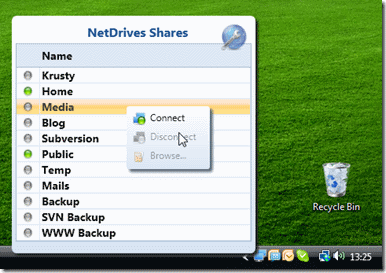
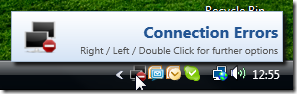
So it looks cool, but how hard is it to make a quick and dirty sample application that shows a custom balloon pop-up out of the system tray? (and yes it follows the tray if you move your task bar).
Easy.

Its so little code, given a few days of my cat walking randomly across my keyboard, there's a good chance he will come up with this code on his own. Better chances of winning the lottery over the holiday break any way!
Happy holidays.
Check it out here:
http://www.hardcodet.net/projects/wpf-notifyicon
So it looks cool, but how hard is it to make a quick and dirty sample application that shows a custom balloon pop-up out of the system tray? (and yes it follows the tray if you move your task bar).
- Create a new WPF project and reference the one Hardcodet.Wpf.TaskbarNotification DLL.
- Add this code to the MainWindow.Xaml
<TextBlock Text="Wait 5 seconds for the ring balloon popup to appear." />
<tb:TaskbarIcon x:Name="tb" VerticalAlignment="Top" Visibility="Hidden" />
- Add this to the code behind:
private DispatcherTimer timer;

        public MainWindow()
        {
            InitializeComponent();
            Loaded += OnLoaded;
        }

        private void OnLoaded(object sender, System.Windows.RoutedEventArgs e)
        {
            this.timer = new DispatcherTimer(new TimeSpan(0, 0, 6), DispatcherPriority.Normal, OnTimerTick, Dispatcher);
            this.timer.Start();
        }

        private void OnTimerTick(object sender, EventArgs e)
        {
            var balloon = new FancyBalloon { BalloonText = "Ring Ring" };
            tb.ShowCustomBalloon(balloon, PopupAnimation.Scroll, 3000);
        }
- Add a user control to define what you want your custom pop-up to look like.
<UserControl x:Class="WpfBasicBalloon.FancyBalloon"
             xmlns="http://schemas.microsoft.com/winfx/2006/xaml/presentation"
             xmlns:x="http://schemas.microsoft.com/winfx/2006/xaml"
             xmlns:mc="http://schemas.openxmlformats.org/markup-compatibility/2006"
             xmlns:d="http://schemas.microsoft.com/expression/blend/2008"
             mc:Ignorable="d"
             Height="300" Width="300">
    <Grid>
        <Border
            Opacity="0.5"
            Background="Pink"
            BorderBrush="Red"
            BorderThickness="2"
            CornerRadius="10"
            Margin="10">
            <Border.BitmapEffect>
                <DropShadowBitmapEffect />
            </Border.BitmapEffect>
            <StackPanel Margin="10">
            <TextBlock Text="Hello World - in pink just for Jo. :-)" />
            <TextBlock Text="{Binding BalloonText}" />
        </StackPanel>
        </Border>
    </Grid>
</UserControl>
Easy.

Its so little code, given a few days of my cat walking randomly across my keyboard, there's a good chance he will come up with this code on his own. Better chances of winning the lottery over the holiday break any way!
Happy holidays.
Wednesday, December 22, 2010
Extracting A ControlTemplate From An Existing WPF Control
There are a number of tools to do this, not least of which is Blend. But sometimes you need some code to do it for you. There have been a few instances where Blend was unable to extract the control template, and resorting to code is the last line of defense.
Here's a snippet of code from a test application where Group1 is an element (of type RibbonGroup). This code comes from a code behind from a xaml window.
Here's a snippet of code from a test application where Group1 is an element (of type RibbonGroup). This code comes from a code behind from a xaml window.
var template = this.Group1.Template;
            var xmlSettings = new XmlWriterSettings { Indent = true };

            var builder = new StringBuilder();
            XmlWriter writer = XmlWriter.Create(builder, xmlSettings);
            XamlWriter.Save(template, writer);
            Clipboard.SetText(builder.ToString());
            Debug.WriteLine(builder.ToString());
This will output the control template xaml to the Debug output and also copy it to the clipboard.
Monday, December 13, 2010
Microsoft WPF 2010 Ribbon
I've been looking into implementing a ribbon control, and found that Microsoft have released the source for there 2010 ribbon! (The 2010 Ribbon is also known as a "Scenic" Ribbon style). Great stuff, thanks Microsoft!
Check out these links for more information:


I've also started reviewing the Fluent Ribbon. See these links:

Check out these links for more information:
- Announcing the Wpf Ribbon
- Download the Ribbon and Samples
- Ribbon Home Page
- WPF Blog - Building a Simple Ribbon App
Microsoft also have a page describing what the different components of the ribbon are and when it should be used: Ribbon WPF and also some common application UI patterns and usage recommendations.
There is full support for the MVVM pattern in the ribbon and support for ICommand.
Screenshots:

Here's one I have started to customise to push the ribbon to the right to make space for companion panel I want to sit next to the ribbon.

I've also started reviewing the Fluent Ribbon. See these links:

Looking at it from a code difficulty point of view and amount of code required, Fluent is definitely easier and you write about 30% less code than what is required for the Microsoft WPF Ribbon. However, the Microsoft offering seems to be faster, and has better support for MVVM.
I am also looking into Infragistics .NetAdvantage 2010 Volume 3, which includes (as of October 2010 I believe) a "Scenic" Office 2010 style Ribbon Bar. It also has a cool feature called ColorWash which allows a measure of control over the color scheme of the bar.
It looks pretty cool on the surface but it doesn't give you exact control over the resulting color. Which I found quite annoying. I found it far too hard to restyle this to be a black scheme. Infragistics have only given one simple Office 2010 style, the blue "Scenic" style. Seems like the Henry Ford approach, "...you can have any color as long as its black...". Finally the overall style does not seem to match closely the Office 2010 style, it seems a little over simplified.
 The above example has set the Wash Color to Black. But this is still no where near dark enough, and doesn't give me the control I want. For example changing the background to a different gradient fill. You can also see the style is subtly simpler than the Fluent and Microsoft images above.
My verdict? In my humble opinion Infragistics comes in at third on this one. It feels like they have retro fitted 2010 styling rather than considering all the features in the Office 2010 Ribbon. Fluent is very good and seems easy to use but there are a few tiny things missing in comparison to Microsoft. However, if ease of implementation is what you're after Fluent looks like the way to go. Me personally, I need all the features Microsoft has over Fluent (Keyboard Navigation, full control of Backstage, and mini-toolbar and shortcut tool-bar).
I am also looking into Infragistics .NetAdvantage 2010 Volume 3, which includes (as of October 2010 I believe) a "Scenic" Office 2010 style Ribbon Bar. It also has a cool feature called ColorWash which allows a measure of control over the color scheme of the bar.
It looks pretty cool on the surface but it doesn't give you exact control over the resulting color. Which I found quite annoying. I found it far too hard to restyle this to be a black scheme. Infragistics have only given one simple Office 2010 style, the blue "Scenic" style. Seems like the Henry Ford approach, "...you can have any color as long as its black...". Finally the overall style does not seem to match closely the Office 2010 style, it seems a little over simplified.

My verdict? In my humble opinion Infragistics comes in at third on this one. It feels like they have retro fitted 2010 styling rather than considering all the features in the Office 2010 Ribbon. Fluent is very good and seems easy to use but there are a few tiny things missing in comparison to Microsoft. However, if ease of implementation is what you're after Fluent looks like the way to go. Me personally, I need all the features Microsoft has over Fluent (Keyboard Navigation, full control of Backstage, and mini-toolbar and shortcut tool-bar).
Subscribe to:
Posts (Atom)