I have to give a shout out to Inkscape what a fantastic tool for drawing and editing vector based icons (such as SVG files). Thoroughly recommend it. Its free and open source!
If it isn't suitable or you're looking for a cost effective way of producing professional icons or UI design check out https://www.fiverr.com/. Its a market place to find, connect with, and hire services of just about any kind.
While you're waiting for your designer to draw your new icons, you can hire someone to pop balloons for you, or take a bath in baked beans.

Showing posts with label Xaml. Show all posts
Showing posts with label Xaml. Show all posts
Sunday, July 17, 2016

More Common Xamarin Forms Project problems
As a follow on from Resolving Common Issues Loading Xamarin Samples here are some other issues I seem to be commonly running into. These issues are not only referring to Xamarin samples, but to any Xamarin project.
C:\Users\<Your Username>\AppData\Local\Xamarin\zips
You'll see an error message similar to "...zip file "C:\Users\<Your Username>\AppData\Local\Xamarin\zips\1FD832DCC1792D8ACA07FAC3259FC5A9.zip" is corrupt.
Deleting all the zip files in that folder will cause them to be downloaded again during the next build within Vs. This will make the next build very slow for obvious reasons. Let it run its course, and resist the temptation to cancel it. It could take 20minutes or more. After they are downloaded and cached in that folder again, build speed will be back to normal.
The following error will be generated if there are dashes "-" in any file in the Resource/Drawables folders.
First try running a Clean build then a Rebuild.If that doesn't work the best bet might be to revert back to a previous version of the SDK Build tools. Also check forums.xamarin.com.
File name: 'Mono.Cecil, Version=0.9.6.0, Culture=neutral, PublicKeyToken=0738eb9f132ed756'
Resolved by Deleting the entire packages folder contents and allowing a build to restore all packages.
Corrupt Xamarin-Android ZIP files
Another common problem seems to be with corrupt Xamarin-Android SDK zip files located here:C:\Users\<Your Username>\AppData\Local\Xamarin\zips
You'll see an error message similar to "...zip file "C:\Users\<Your Username>\AppData\Local\Xamarin\zips\1FD832DCC1792D8ACA07FAC3259FC5A9.zip" is corrupt.
Deleting all the zip files in that folder will cause them to be downloaded again during the next build within Vs. This will make the next build very slow for obvious reasons. Let it run its course, and resist the temptation to cancel it. It could take 20minutes or more. After they are downloaded and cached in that folder again, build speed will be back to normal.
Error "aapt.exe" exited with code -1073741819.
Another common symptom is build errors in the Android generated file Resource.cs file.The following error will be generated if there are dashes "-" in any file in the Resource/Drawables folders.
Android SDK Updates
Generally if an error follows an Android SDK update it is most likely related to new build and SDK tools being used just installed/updated. Like the above error the most likely symptom of this is errors from the generated file Resource.cs file in your Android project.First try running a Clean build then a Rebuild.If that doesn't work the best bet might be to revert back to a previous version of the SDK Build tools. Also check forums.xamarin.com.
Error The "XamlCTask" task failed unexpectedly.
System.IO.FileNotFoundException: Could not load file or assembly 'Mono.Cecil, Version=0.9.6.0, Culture=neutral, PublicKeyToken=0738eb9f132ed756' or one of its dependencies. The system cannot find the file specified.File name: 'Mono.Cecil, Version=0.9.6.0, Culture=neutral, PublicKeyToken=0738eb9f132ed756'
Resolved by Deleting the entire packages folder contents and allowing a build to restore all packages.
Saturday, April 30, 2016
A couple of odd questions in a Xamarin University course
These answers don't seem correct to me. Anyone agree, disagree?


Wednesday, April 20, 2016
Auckland Xamarin Meet-Up Talk links
Steve Chadbourne – @stevechadbourne
Ben Rees – @benrnz
Here some links to the tools Steve and I talked about tonight.
Simple Xamarin Form Example:
Learning Forms
Gorilla Player
Open Source Xaml Viewer
Monday, April 18, 2016
Data Binding - The Awesome Sauce lavished onto Xamarin Forms
There are some great resources around introducing Data Binding for Xamarin Forms. Here are some great posts I've come across that are worth reading and bookmarking.
For some background on getting started with Xamarin Forms. Check out the Xamarin guide here:
https://developer.xamarin.com/guides/xamarin-forms/
Xamarin have a solid section that gives a good start into learning XAML and Data Binding here:
https://developer.xamarin.com/guides/xamarin-forms/user-interface/xaml-basics/
Its definitely worth reading through all six sections.
Part 1. Getting Started with XAML
Part 2. Essential XAML Syntax
Part 3. XAML Markup Extensions
Part 4. Data Binding Basics
Part 5. From Data Binding to MVVM
Part 6. Compiling XAML
Data Binding Controls to each other to prevent/reduce writing code-behind.
https://blog.xamarin.com/advanced-data-binding-for-ios-android-and-windows/
For some background on getting started with Xamarin Forms. Check out the Xamarin guide here:
https://developer.xamarin.com/guides/xamarin-forms/
Xamarin have a solid section that gives a good start into learning XAML and Data Binding here:
https://developer.xamarin.com/guides/xamarin-forms/user-interface/xaml-basics/
Its definitely worth reading through all six sections.
Part 1. Getting Started with XAML
Part 2. Essential XAML Syntax
Part 3. XAML Markup Extensions
Part 4. Data Binding Basics
Part 5. From Data Binding to MVVM
Part 6. Compiling XAML
Data Binding Controls to each other to prevent/reduce writing code-behind.
https://blog.xamarin.com/advanced-data-binding-for-ios-android-and-windows/
Awesome Xamarin Forms How-To Commands
Recently read a great blog from David Britch giving a comprehensive guide to using commands with Xamarin Forms.
https://blog.xamarin.com/simplifying-events-with-commanding/
https://blog.xamarin.com/simplifying-events-with-commanding/
Fresh Essentials for Xamarin Forms
Michael Ridland has recently blogged about a nice light weight library of essential and commonly used converters, controls and utilities.
http://www.michaelridland.com/xamarin/freshessentials-for-xamarin-forms-the-must-have-nuget-for-forms/
http://www.michaelridland.com/xamarin/freshessentials-for-xamarin-forms-the-must-have-nuget-for-forms/
Saturday, April 9, 2016
Simple Xamarin Forms Demo App
A Simple Xamarin Forms Sample App
Recently I presented a short Xamarin Forms introduction. It was only a short 30min taster, but I wanted to ensure I was showing something a little deeper than a simple "Hello World" App. I personally find those kind of demo's too basic and not enough to get a taste of how using a technology is going to suit real world work.
Here's the App I built for the demo:
https://github.com/Benrnz/CorporateBsGenerator

Demo points
- Solution structure of a Xamarin Forms App.
- Entry point - how does it start and choose the first Xaml page?
- Anatomy of a Xaml page.
- Xaml Basics
- Root elements, in this case a ContentPage. Other options are MasterDetailPage, TabbedPage, and NavigationPage.
- Setting Page Padding to different values for each platform.
- Layout Controls: In this case we're using a AbsoluteLayout and a StackLayout. Another common Layout is Grid.
- Labels, Styles, and basic value DataBinding.
- Using different buttons for iOS and Android. The Material Design Floating Action Button.
- Binding can be used for more than value binding. The FAB has a bound reference to the ListView.
- Code Behind
- Great to get started
- Event Handlers
- Best Practice - Code behind doesn't scale well. The MVVM pattern.
- A look at more advanced customisation for Android. A Custom Renderer to create a Floating Action Button.
- Tooling - What do we need to develop and test an App?
Sunday, April 3, 2016
Floating Action Button in Xamarin Forms
I'm loving experimenting with Xamarin Forms at the moment. So when I wanted to include a Floating Action Button (FAB) in Android versions of a Forms App, I naturally wanted to try to get this working with Forms first. I realise you can use Xamarin Native Android views in a Forms App, but I enjoy XAML and creating reusable controls.
My first port of call was James Montemagno's GitHub and blog and found his examples for a FAB.
 https://github.com/jamesmontemagno/FloatingActionButton-for-Xamarin.Android
He does mention he ported this code from: https://github.com/makovkastar/FloatingActionButton
This looks perfect, but I wanted to improve the Forms example to be mostly XAML based and try to best encapsulate the events into the FAB control to minimise the amount of work the consuming developer has to do.
Here's my code so far.
https://github.com/Benrnz/XamlFloatingActionButton
Its far from perfect, but works great. Be aware however, that if your ObservableCollection has duplicate values in it, the FAB will exhibit unexpected hide/show behaviour.
Here's what I ended up with in my XAML:
My first port of call was James Montemagno's GitHub and blog and found his examples for a FAB.

He does mention he ported this code from: https://github.com/makovkastar/FloatingActionButton
This looks perfect, but I wanted to improve the Forms example to be mostly XAML based and try to best encapsulate the events into the FAB control to minimise the amount of work the consuming developer has to do.
Here's my code so far.
https://github.com/Benrnz/XamlFloatingActionButton
Its far from perfect, but works great. Be aware however, that if your ObservableCollection has duplicate values in it, the FAB will exhibit unexpected hide/show behaviour.
Here's what I ended up with in my XAML:
  <AbsoluteLayout VerticalOptions="FillAndExpand"
           HorizontalOptions="FillAndExpand">
     <StackLayout AbsoluteLayout.LayoutFlags="All"
            AbsoluteLayout.LayoutBounds="0,0,1,1">
       <Label Text="FAB Test 1"
           VerticalOptions="Center"
           HorizontalOptions="Center" />
       <ListView x:Name="MainList"
            ItemsSource="{Binding MyItems}"
            VerticalOptions="FillAndExpand"/>
     </StackLayout>
     <fabTest1:FloatingActionButtonView x:Name="Fab"
                       AbsoluteLayout.LayoutFlags="PositionProportional"
                       AbsoluteLayout.LayoutBounds="1,1,AutoSize,AutoSize"
                       ImageName="ic_add.png"
                       ColorNormal="#ff3498db"
                       ColorPressed="Black"
                       ColorRipple="#ff3498db"
                       Command="{Binding FabExecuteCommand}"
                       ParentList="{Binding Source={x:Reference MainList}, Path=.}"/>
</AbsoluteLayout> Thursday, November 14, 2013
Get ListboxItem from a the bound SelectedItem
In my case the ListBox is bound to an IEnumerable<Transaction>. Where Transaction is a custom type in my domain model.
        <ListBox x:Name="TransactionListBox"
                     ItemsSource="{Binding Statement.Transactions}"
                     SelectedItem="{Binding SelectedTransaction}" />
...
        private ListBoxItem GetSelectedListBoxItem()
        {
            object transaction = this.TransactionListBox.SelectedItem;
            return (ListBoxItem) this.TransactionListBox.ItemContainerGenerator.ContainerFromItem(transaction);
        }
Get DataGridCell given row and column index
        private static DataGridCell GetCell(DataGrid grid, DataGridRow row, int column)
        {
            if (row != null)
            {
                var presenter = GetVisualChild<DataGridCellsPresenter>(row);

                if (presenter == null)
                {
                    grid.ScrollIntoView(row, grid.Columns[column]);
                    presenter = GetVisualChild<DataGridCellsPresenter>(row);
                }

                var cell = (DataGridCell)presenter.ItemContainerGenerator.ContainerFromIndex(column);
                return cell;
            }
            return null;
        }
Find a Child Element in the Visual Tree Programmatically
        private static T GetVisualChild<T>(Visual parent) where T : Visual
        {
            T child = default(T);
            int numVisuals = VisualTreeHelper.GetChildrenCount(parent);

            for (int i = 0; i < numVisuals; i++)
            {
                var v = (Visual) VisualTreeHelper.GetChild(parent, i);
                child = v as T;
                if (child == null)
                {
                    child = GetVisualChild<T>(v);
                }
                if (child != null)
                {
                    break;
                }
            }
            return child;
        }
Finding a DataGridRow based on row index in WPF
        private static DataGridRow GetRow(DataGrid grid, int index)
        {
            var row = (DataGridRow)grid.ItemContainerGenerator.ContainerFromIndex(index);
            if (row == null)
            {
                // May be virtualized, bring into view and try again.
                grid.UpdateLayout();
                if (index >= grid.Items.Count)
                {
                    index = grid.Items.Count - 1;
                }

                grid.ScrollIntoView(grid.Items[index]);
                row = (DataGridRow)grid.ItemContainerGenerator.ContainerFromIndex(index);
            }
            return row;
        }
Friday, December 24, 2010
Balloon Pop-ups and Toaster Pops
Recently I was looking into balloons, toaster-pops, and general system tray messages. There's nothing much WPF gives you out of the box to give you a leg up. So I turned to Google to search for either code samples or control libraries. I found a fantastic free open-source all-in-one framework for all things balloons, system-tray and toaster-pops.
Check it out here:
http://www.hardcodet.net/projects/wpf-notifyicon
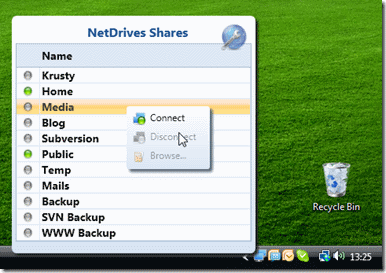
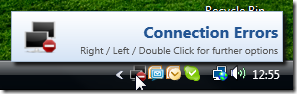
So it looks cool, but how hard is it to make a quick and dirty sample application that shows a custom balloon pop-up out of the system tray? (and yes it follows the tray if you move your task bar).
Easy.

Its so little code, given a few days of my cat walking randomly across my keyboard, there's a good chance he will come up with this code on his own. Better chances of winning the lottery over the holiday break any way!
Happy holidays.
Check it out here:
http://www.hardcodet.net/projects/wpf-notifyicon
So it looks cool, but how hard is it to make a quick and dirty sample application that shows a custom balloon pop-up out of the system tray? (and yes it follows the tray if you move your task bar).
- Create a new WPF project and reference the one Hardcodet.Wpf.TaskbarNotification DLL.
- Add this code to the MainWindow.Xaml
<TextBlock Text="Wait 5 seconds for the ring balloon popup to appear." />
<tb:TaskbarIcon x:Name="tb" VerticalAlignment="Top" Visibility="Hidden" />
- Add this to the code behind:
private DispatcherTimer timer;

        public MainWindow()
        {
            InitializeComponent();
            Loaded += OnLoaded;
        }

        private void OnLoaded(object sender, System.Windows.RoutedEventArgs e)
        {
            this.timer = new DispatcherTimer(new TimeSpan(0, 0, 6), DispatcherPriority.Normal, OnTimerTick, Dispatcher);
            this.timer.Start();
        }

        private void OnTimerTick(object sender, EventArgs e)
        {
            var balloon = new FancyBalloon { BalloonText = "Ring Ring" };
            tb.ShowCustomBalloon(balloon, PopupAnimation.Scroll, 3000);
        }
- Add a user control to define what you want your custom pop-up to look like.
<UserControl x:Class="WpfBasicBalloon.FancyBalloon"
             xmlns="http://schemas.microsoft.com/winfx/2006/xaml/presentation"
             xmlns:x="http://schemas.microsoft.com/winfx/2006/xaml"
             xmlns:mc="http://schemas.openxmlformats.org/markup-compatibility/2006"
             xmlns:d="http://schemas.microsoft.com/expression/blend/2008"
             mc:Ignorable="d"
             Height="300" Width="300">
    <Grid>
        <Border
            Opacity="0.5"
            Background="Pink"
            BorderBrush="Red"
            BorderThickness="2"
            CornerRadius="10"
            Margin="10">
            <Border.BitmapEffect>
                <DropShadowBitmapEffect />
            </Border.BitmapEffect>
            <StackPanel Margin="10">
            <TextBlock Text="Hello World - in pink just for Jo. :-)" />
            <TextBlock Text="{Binding BalloonText}" />
        </StackPanel>
        </Border>
    </Grid>
</UserControl>
Easy.

Its so little code, given a few days of my cat walking randomly across my keyboard, there's a good chance he will come up with this code on his own. Better chances of winning the lottery over the holiday break any way!
Happy holidays.
Wednesday, December 22, 2010
Extracting A ControlTemplate From An Existing WPF Control
There are a number of tools to do this, not least of which is Blend. But sometimes you need some code to do it for you. There have been a few instances where Blend was unable to extract the control template, and resorting to code is the last line of defense.
Here's a snippet of code from a test application where Group1 is an element (of type RibbonGroup). This code comes from a code behind from a xaml window.
Here's a snippet of code from a test application where Group1 is an element (of type RibbonGroup). This code comes from a code behind from a xaml window.
var template = this.Group1.Template;
            var xmlSettings = new XmlWriterSettings { Indent = true };

            var builder = new StringBuilder();
            XmlWriter writer = XmlWriter.Create(builder, xmlSettings);
            XamlWriter.Save(template, writer);
            Clipboard.SetText(builder.ToString());
            Debug.WriteLine(builder.ToString());
This will output the control template xaml to the Debug output and also copy it to the clipboard.
Monday, August 2, 2010
Wpf Custom Fonts
Easy.
Include the *.ttf file into your WPF project as a Resource.
Reference it into a ResourceDictionary as follows:
<UserControl.Resources>
    <FontFamily x:Key="WeirdFontFamily">/TestProject;Component/Fonts/#Weird</FontFamily>
    <FontFamily x:Key="WeirdBoldFontFamily">/TestProject;Component/Fonts/#Weird Bold</FontFamily>
</UserControl.Resources>
I don't fully understand exactly what the # is doing, but suffice to say in this case it is followed by the font name not the file name. The font name can be found by double clicking the TTF file which opens it in the WIndows Font Viewer.
Here's a usage example:
<TextBlock
          FontFamily="{DynamicResource WeirdFontFamily}"
          FontSize="18"
          />
Monday, July 26, 2010
External Dependency Wrapping and Unit Testing
A project I am currently working on requires us to reference a third party assembly. As is quite often the case the assembly is not exposing types that are unit testing friendly. Ideally interfaces or abstract base classes would be great, but this is seldom the case. I've been refining a strategy to consume dependencies in a indirect manner so the hard coded types don't work their way through my code essentially having a "Medusa" effect. IE: Casting all of my types into stone and then they too cannot be replaced with test mocks.
Consider the schematic diagram below. The blue assembly is the Medusa assembly, wanting to cast all my types into stone. But wait I have a magic mirror shield! The External Type Factory. This is intended to control the creation of types I need to consume from the external assembly. The other issue is being able to invoke methods in the external assembly that require the hard types(Widget, Color, and Thing) as parameters. The External Type Factory has adaptor methods to unwrap my wrappers back to their original types in an indirect manner to stop the petrification effect.

The good:
- Stops the external hard types from preventing unit testing.
- Can also have life cycle management benefits - ie all calls to the assembly are managed through one area of code allowing other benefits such as life cycle management (correct instantiation and disposal) and logging.
- Fits well with IoC containers.
- Allows tossing the external dependency away and replacement with something else at a future date with little effort.
The bad:
- A slight overhead of more code.
- A slight overhead of more complexity with the indirection.
- You still need to ensure that all developers use your factory instead of going direct and preventing unit testing.
- All types that want to use the external assembly need to have a factory available to them to be able to get the types.
- Not really usable in XAML code.
I might add detail to this as I continue the journey down this path.
Monday, June 28, 2010
Xaml Serialization and Blend Sample Data
Background
For a project I am currently working on, we are using specialised UI Designers and they are using Blend to import, draw and arrange the graphic assets. One of the coolest features in Blend 4 is the very nice Sample Data features. Our process involves delivering partially constructed MVVM controllers so the Designers can use Blend to generate random sample data. This is all well and good, but it still means the application is totally blank when it runs, hence the generated sample data is called "Design-time Sample Data". However, the sample data is actually a serialised format of instances of objects:
Blend's Design-time Sample Data
Blend offers 3 ways of creating sample data:
- From an XML file you have handcrafted yourself.
- From a code class.
- Or manually creating it using a designer within Blend. (Not terribly useful in my opinion as the developers generally set the underlying class structure and names).
I have been using the code class option.

This generates a sample data item in the Data tab.

From this we can now be more specific on what kind of data each field is. For example string fields can use the following templates to generate sample data:

Blend has created an xaml file to store in serialised form the object instances it has created.
Having sample data in the application makes the designer's job much easier as the see the data in the fields. It also means its easier to create custom templates for collection based items.

Xaml Serialised Data
The Xaml markup is actually just a form of XML serialisation. Here's an example of the file format generated by Blend:
<WpfApplication:MainWindowController
    xmlns:WpfApplication="clr-namespace:WpfApplication"
    State="Active">

    <WpfApplication:MainWindowController.CurrentForm>
        <WpfApplication:FormController State="Active">
            <WpfApplication:FormController.CurrentContact>
                <WpfApplication:Contact
                    Company="A. Datum Corporation"
                    Email="someone@example.com"
                    FirstName="Aaberg, Jesper"
                    MainLine="(111) 555-0100"
                    Mobile="(111) 555-0100"
                    State="Active"
                    Surname="Aaberg, Jesper" />
            </WpfApplication:FormController.CurrentContact>
        </WpfApplication:FormController>
    </WpfApplication:MainWindowController.CurrentForm>

    <WpfApplication:MainWindowController.Dashboard>
        <WpfApplication:DashboardController
            Capacity="33"
            Online="True"
            State="Invalid"
            Status="Amet dictumst curae donec eleifend"
            StatusEnum="Online" />
    </WpfApplication:MainWindowController.Dashboard>

</WpfApplication:MainWindowController>
This syntax is significantly better than standard Xml serialisation because the xml type elements are namespaced back to the assembly they are declared in. Also it follows the same serialisation process as WCF Service contract serialisation in that it serialises all public properties. Standard Xml serialisation only serialises fields and those must be decorated with Xml Attributes! Way too much hassle. Xaml serialisation is definitely the way of the future.
The Problem
Having design time data is a very tidy solution as it guarantees the design time data doesn't make it into your compiled executable. The only drawback is that the designers can't run the application to do final visual testing. One solution to this problem is to use the Xaml Serialisation classes to deserialise the Xaml back into objects and bind to those at runtime.
I feel like I need to come up with a safer more elegant solution so the design time cannot be accidentally left in the executable code, but for now I use a compilation switch #SAMPLEDATA. But hopefully the likelihood of someone releasing the product with the SAMPLEDATA switch intact is low.
public partial class App
    {
        /// <summary>
        /// Initializes a new instance of the <see cref="App"/> class.
        /// </summary>
        public App()
        {
#if (SAMPLEDATA)
            // Sample data used at runtime.  Sometimes useful for visual testing in addition to design time testing in Blend.
            SampleData.SampleDataRepository.MainWindowController =
                SetUpSampleData<MainWindowController>(@".\..\..\SampleData\MainWindowControllerSampleData.xaml");
#endif
        }

#if (SAMPLEDATA)
        private static T SetUpSampleData<T>(string sampleDataFile) where T : class, new()
        {
            // Using Xaml
            if (File.Exists(sampleDataFile))
            {
                var deserialisedObject = XamlServices.Load(sampleDataFile);
                return deserialisedObject as T;
            }

            return null;
        }
#endif
    }
You can see I am using a static class with static properties to store the pre-made sample data controllers ready for use. The sample controllers replace runtime controllers when the SAMPLEDATA switch is present. .Net 4 includes a new class designed to simplify Xaml serialisation System.Xaml.XamlServices.
public partial class Sample {
        public Sample() {
            InitializeComponent();

#if (SAMPLEDATA)
            this.DataContext = SampleData.SampleDataRepository.MainWindowController;
#endif
        }
    }
Ordinarily when running in "Production" mode the DataContext is set in Xaml (my personal preference), or if it is set in code behind then it would need to be above the #if.
For more complicated scenarios the controllers might need to be interfaced if the are tightly bound to other data sources. This would allow the sample controllers to bypass any data service calls etc.
Serialisation
It doesn't apply to this scenario but it is equally as easy as deserialisation.
string serialised = XamlServices.Save(myObject);
No need to tell it the type or anything else. There are other overloads that take streams and writers and parameters.
For more information:
Saturday, May 29, 2010
Useful Snippets of Xaml
Here's a sample project a team member worked on as an exercise. The object was to write a search interface and come up with a good user interface. This example shows how to highlight text in a string based on the search criteria, a nice data template, and changing the visual selection queue.
Code behind: (This is not a demonstration of how to format your code behind nor to write clean code!) :-)


<Window
    x:Class="WidgetSearch3000.Window1"
    x:Name="MainWindow"
    xmlns="http://schemas.microsoft.com/winfx/2006/xaml/presentation"
    xmlns:local="clr-namespace:WidgetSearch3000"
    xmlns:x="http://schemas.microsoft.com/winfx/2006/xaml"
    DataContext="{Binding ElementName=MainWindow}"
    Height="300"
    Icon="SearchIcon.png"
    Title="Widget Searcher 3001"
    Width="300">

    <Window.Resources>
        <local:TextFormatterConverter x:Key="TextFormatter" />

        <Style
            x:Key="FoundTextStyle"
            TargetType="{x:Type Run}">
            <Setter Property="Foreground" Value="Red" />
            <Setter Property="FontWeight" Value="Bold" />
            <Setter Property="Run.TextDecorations" Value="Underline" />
        </Style>

        <Style
            x:Key="searchTextBox"
            TargetType="TextBox">
            <Setter Property="FontSize" Value="12pt" />
            <Setter Property="FontFamily" Value="Tahoma" />
            <Setter Property="FontWeight" Value="Bold" />
            <Setter Property="Foreground" Value="Black" />
            <Setter Property="Template">
                <Setter.Value>
                    <!-- This is the custom control template we will apply to the TextBox -->

                    <ControlTemplate TargetType="TextBox">
                        <Border
                            Background="WhiteSmoke"
                            BorderBrush="LightSteelBlue"
                            BorderThickness="6"
                            CornerRadius="7"
                            Padding="7">
                            <Grid>
                                <ScrollViewer x:Name="PART_ContentHost" />
                            </Grid>
                        </Border>
                    </ControlTemplate>
                </Setter.Value>
            </Setter>
        </Style>

        <DataTemplate x:Key="ContactTemplate">
            <Grid Margin="5, 5, 5, 5">
                <Grid.RenderTransform>
                    <TransformGroup>
                        <ScaleTransform
                            ScaleX="1"
                            ScaleY="1" />
                    </TransformGroup>
                </Grid.RenderTransform>
                <Border
                    x:Name="Grid"
                    BorderBrush="Black"
                    BorderThickness="1.5"
                    CornerRadius="10"
                    Grid.Row="1"
                    Height="50"
                    Padding="5"
                    VerticalAlignment="Stretch">
                    <Border.Background>
                        <SolidColorBrush
                            x:Name="HighlightBrushName"
                            Color="WhiteSmoke" />
                    </Border.Background>
                    <TextBlock
                        x:Name="Text"
                        FontSize="15"
                        HorizontalAlignment="Stretch"
                        VerticalAlignment="Center">
                        <TextBlock.IsEnabled>
                            <MultiBinding Converter="{StaticResource TextFormatter}">
                                <Binding Path="FullName" />
                                <Binding
                                    ElementName="tSearchString"
                                    Path="Text" />
                                <Binding RelativeSource="{RelativeSource Self}" />
                                <Binding Source="{StaticResource FoundTextStyle}" />
                            </MultiBinding>
                        </TextBlock.IsEnabled>
                    </TextBlock>
                </Border>
            </Grid>
            <DataTemplate.Triggers>
                <DataTrigger Binding="{Binding Path=IsSelected, RelativeSource={RelativeSource FindAncestor, AncestorType={x:Type ListBoxItem}}}" Value="True">
                    <Setter Property="BitmapEffect" TargetName="Grid">
                        <Setter.Value>
                            <DropShadowBitmapEffect />
                        </Setter.Value>
                    </Setter>
                    <Setter Property="Foreground" TargetName="Text" Value="Black" />
                    <DataTrigger.EnterActions>
                        <BeginStoryboard>
                            <Storyboard>
                                <ColorAnimation
                                    Duration="00:00:01"
                                    Storyboard.TargetName="HighlightBrushName"
                                    Storyboard.TargetProperty="Color"
                                    To="#FFFDFF2F" />
                                <DoubleAnimation
                                    Duration="00:00:00.50"
                                    Storyboard.TargetName="Grid"
                                    Storyboard.TargetProperty="Height"
                                    To="60" />
                            </Storyboard>
                        </BeginStoryboard>
                    </DataTrigger.EnterActions>
                    <DataTrigger.ExitActions>
                        <BeginStoryboard>
                            <Storyboard>
                                <ColorAnimation
                                    Duration="00:00:00.50"
                                    Storyboard.TargetName="HighlightBrushName"
                                    Storyboard.TargetProperty="Color"
                                    To="WhiteSmoke" />
                                <DoubleAnimation
                                    Duration="00:00:00.50"
                                    Storyboard.TargetName="Grid"
                                    Storyboard.TargetProperty="Height"
                                    To="50" />
                            </Storyboard>
                        </BeginStoryboard>
                    </DataTrigger.ExitActions>
                </DataTrigger>
            </DataTemplate.Triggers>
        </DataTemplate>
    </Window.Resources>

    <Grid>
        <Grid.RowDefinitions>
            <RowDefinition Height="10" />
            <RowDefinition Height="50" />
            <RowDefinition Height="*" />
        </Grid.RowDefinitions>
        <Grid
            Grid.Row="1"
            VerticalAlignment="Stretch">
            <Grid.ColumnDefinitions>
                <ColumnDefinition Width="60" />
                <ColumnDefinition Width="*" />
                <ColumnDefinition Width="30" />
            </Grid.ColumnDefinitions>
            <Label
                x:Name="label1"
                FontSize="12"
                FontWeight="Bold"
                Grid.Column="0"
                Height="28">
                Search:
            </Label>
            <TextBox
                x:Name="tSearchString"
                Grid.Column="1"
                HorizontalAlignment="Stretch"
                Style="{StaticResource searchTextBox}"
                TextChanged="tSearchString_TextChanged" />
        </Grid>
        <GroupBox
            x:Name="groupBox1"
            Grid.Row="2"
            Header="Results"
            VerticalAlignment="Stretch">
            <ListBox
                x:Name="listOfPeople"
                HorizontalContentAlignment="Stretch"
                ItemsSource="{Binding FoundPeople}"
                ItemTemplate="{StaticResource ContactTemplate}"
                Padding="3"
                ScrollViewer.VerticalScrollBarVisibility="Visible">
                <ListBox.Resources>
                    <SolidColorBrush
                        x:Key="{x:Static SystemColors.HighlightBrushKey}"
                        Color="Transparent" />
                </ListBox.Resources>
            </ListBox>
        </GroupBox>
    </Grid>

</Window>namespace WidgetSearch3000 {
using System;
using System.Collections.Generic;
using System.Windows;
using System.Windows.Controls;
using System.Windows.Data;
using System.Windows.Documents;
using System.Collections.ObjectModel;
public class TextFormatterConverter : IMultiValueConverter {
#region IMultiValueConverter Members
public object Convert(object[] values, Type targetType, object parameter, System.Globalization.CultureInfo culture) {
var name = values[0] as String;
if (name == null) {
return true;
}
var nameLower = name.ToLower();
var search = values[1] as String;
if (search == null) {
return true;
}
var searchLower = search.ToLower();
var t = values[2] as TextBlock;
if (t == null) {
return true;
}
var runStyle = values[3] as Style;
if (runStyle == null) {
return true;
}
t.Inlines.Clear();
Run run;
int index = nameLower.IndexOf(searchLower);
if (!searchLower.Equals("")) {
while (index != -1) {
if (index != 0) {
run = new Run();
//run.Foreground = Brushes.Black;
run.Text = name.Substring(0, index);
t.Inlines.Add(run);
}
run = new Run();
run.Text = name.Substring(index, search.Length);
run.Style = runStyle;
t.Inlines.Add(run);
name = name.Substring(index + search.Length);
nameLower = nameLower.Substring(index + search.Length);
index = nameLower.IndexOf(searchLower);
}
}
if (!name.Equals("")) {
run = new Run();
//run.Foreground = Brushes.Black;
run.Text = name;
t.Inlines.Add(run);
}
return true;
//}
//return string.Format("this is a test: {0} {1}", values[0], values[1]);
}
public object[] ConvertBack(object value, Type[] targetTypes, object parameter, System.Globalization.CultureInfo culture) {
throw new NotImplementedException();
}
#endregion
}
/// <summary>
/// Interaction logic for Window1.xaml
/// </summary>
public partial class Window1 : Window {
private List<Person> m_lsPeople;
private ObservableCollection<Person> m_lsFound = new ObservableCollection<Person>();
public Window1() {
InitializeComponent();
//m_lsFound = new ObservableCollection<Person>();
m_lsPeople = new List<Person>();
m_lsPeople.Add(new Person("Paul", "Machinroe"));
m_lsPeople.Add(new Person("Frank", "Smith"));
m_lsPeople.Add(new Person("Joe", "Yakk"));
m_lsPeople.Add(new Person("Grant", "Wellington"));
m_lsPeople.Add(new Person("Lucy", "Fiat"));
m_lsPeople.Sort();
//DataContext = this;
Search();
}
public void Search() {
// m_lsFound.Clear();
Boolean hasAdded = false;
foreach (Person person in m_lsPeople) {
if (!person.Contains(tSearchString.Text)) {
m_lsFound.Remove(person);
} else if (!m_lsFound.Contains(person)) {
hasAdded = false;
for (int i = 0; i < m_lsFound.Count; i++) {
if (person.CompareTo(m_lsFound[i]) < 0) {
m_lsFound.Insert(i, person);
hasAdded = true;
break;
}
}
if (!hasAdded) {
m_lsFound.Add(person);
}
}
}
}
public ObservableCollection<Person> FoundPeople {
get {
return m_lsFound;
}
set {
m_lsFound = value;
}
}
private void tSearchString_TextChanged(object sender, TextChangedEventArgs e) {
Search();
}
}
}
Subscribe to:
Posts (Atom)